
From our Substack
Locked Chats Keep ChatGPT Conversations Out of View. But Is It Enough?
A quick guide to what ChatGPT hides, saves, remembers and shares, plus a checklist you can finish in a few minutes.
You're about to share your screen when you remember what's sitting in your ChatGPT sidebar: "weird rash on my hand."
Locked chats are made for this moment. But keeping a chat out of view is only one privacy question. Whether it’s saved, remembered, shared or used for training are separate questions, and each has its own control.
What locking does
Locking moves a chat out of your regular history, pinned chats and search, and into Projects → Locked chats, behind a 4-digit account PIN. OpenAI is rolling it out gradually, including to Free accounts, so you may not see it yet.
If you do:
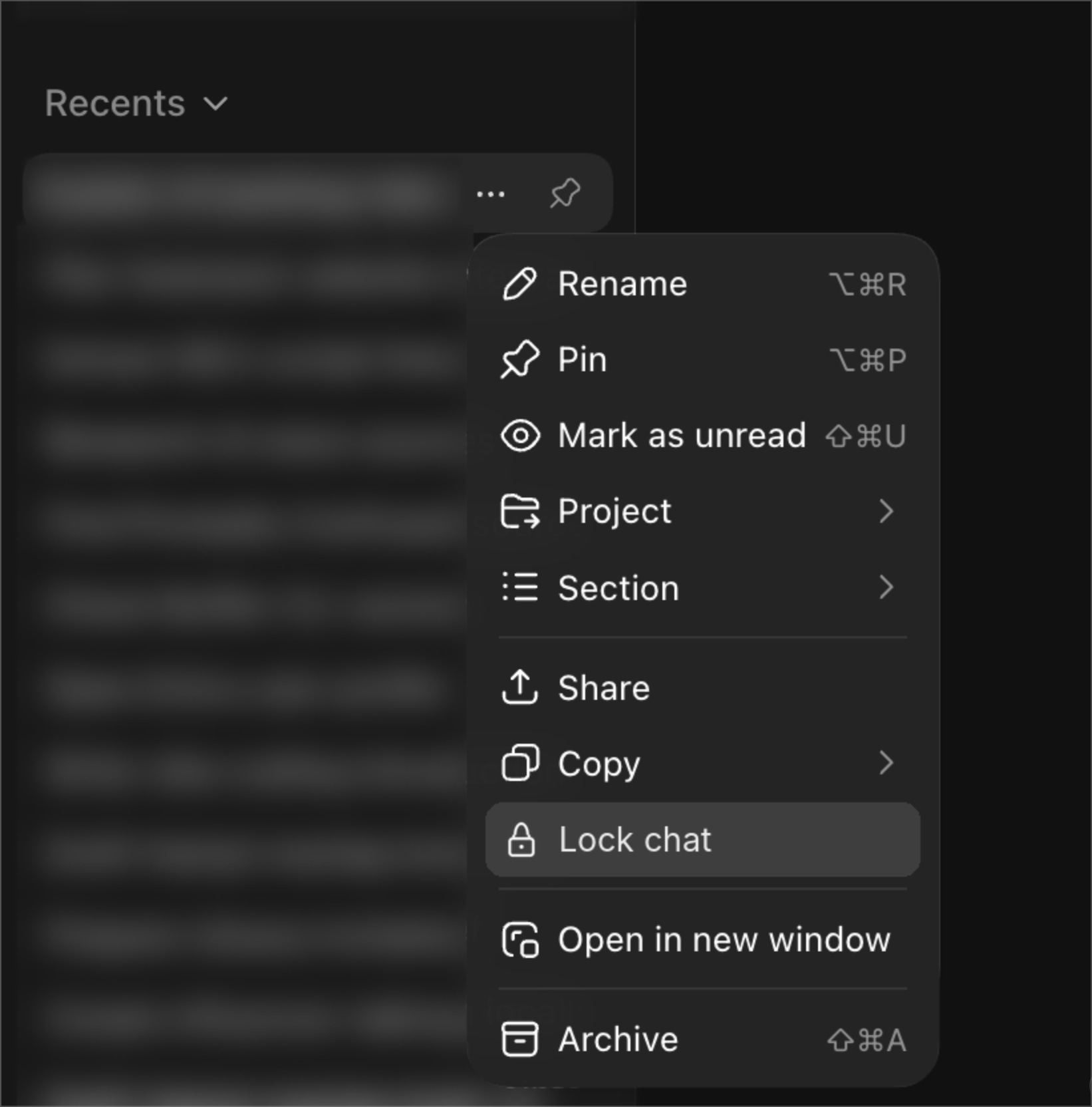
Open the chat’s ••• menu.
Select Lock chat and confirm.
Create or enter your PIN. Supported phones can add Face ID, Touch ID or device unlock afterward.
About that PIN: Forgetting it deletes nothing, and changing it while you still know it keeps your chats. Resetting it is different. A reset permanently deletes all your locked chats and anything else protected only by that PIN, and OpenAI Support can’t recover them. Keep the PIN somewhere safe.
The PIN controls who can open the chat in ChatGPT. It doesn’t make the conversation end-to-end encrypted. OpenAI says your content is encrypted at rest and in transit, but that’s a different thing from encryption designed to stop the service provider from accessing your messages. Locking also leaves your training setting, retention and earlier memories as they were.
Your privacy checklist
Start with whichever question you actually care about.
1. “I don’t want this chat in view.” Lock it, then select Lock now when you’re done. It stays saved in your account.
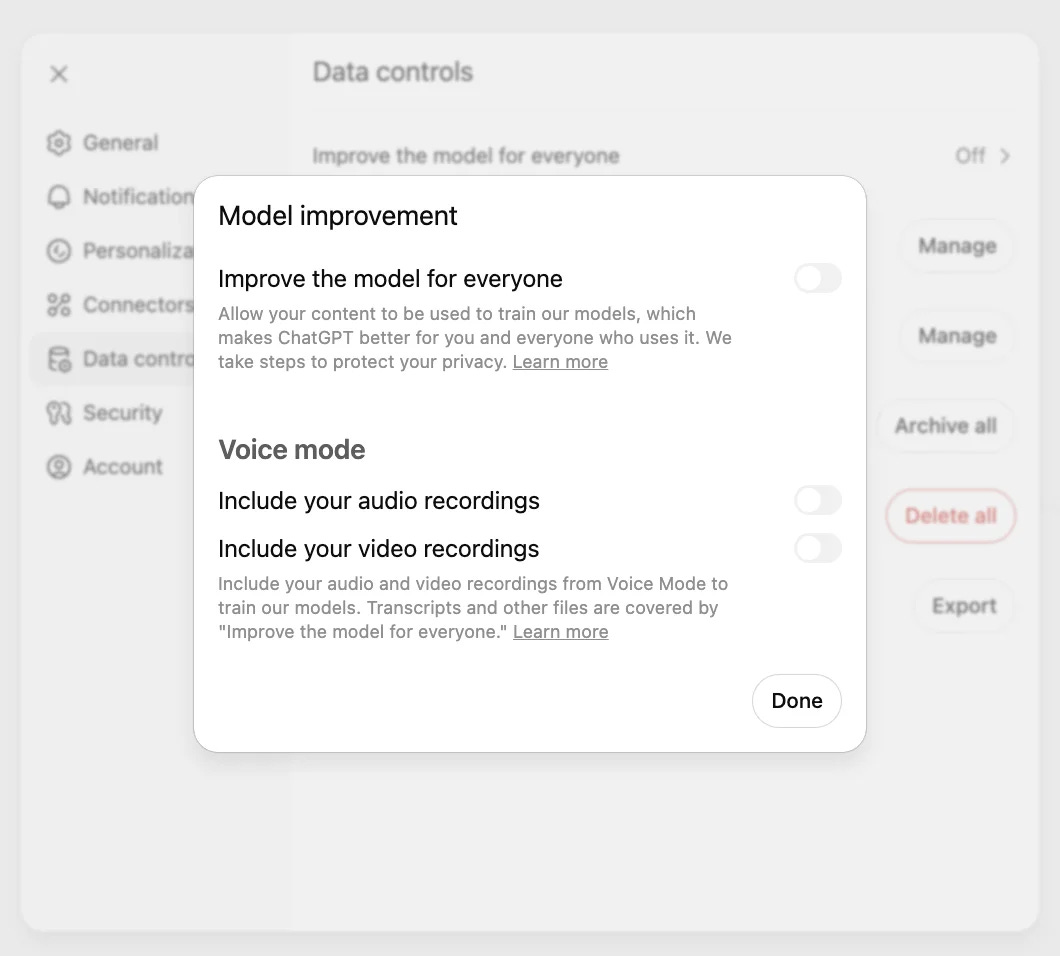
2. “I don’t want my chats used for training.” Go to Settings → Data controls → Improve the model for everyone and turn it off. On mobile, open Settings from your profile icon in the sidebar.
On a personal account, this means new conversations won’t be used for training, across your signed-in devices. Your chats stay in your history, so this won’t clean anything up. One catch: giving a response a thumbs up or down can make that whole conversation eligible for training.
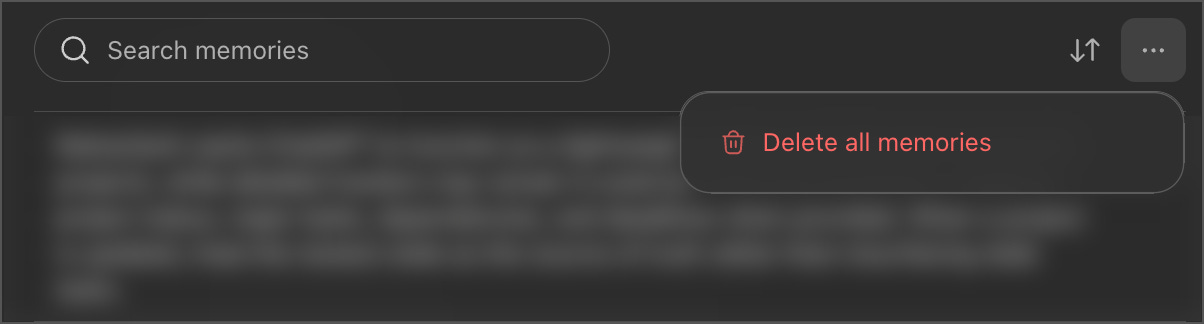
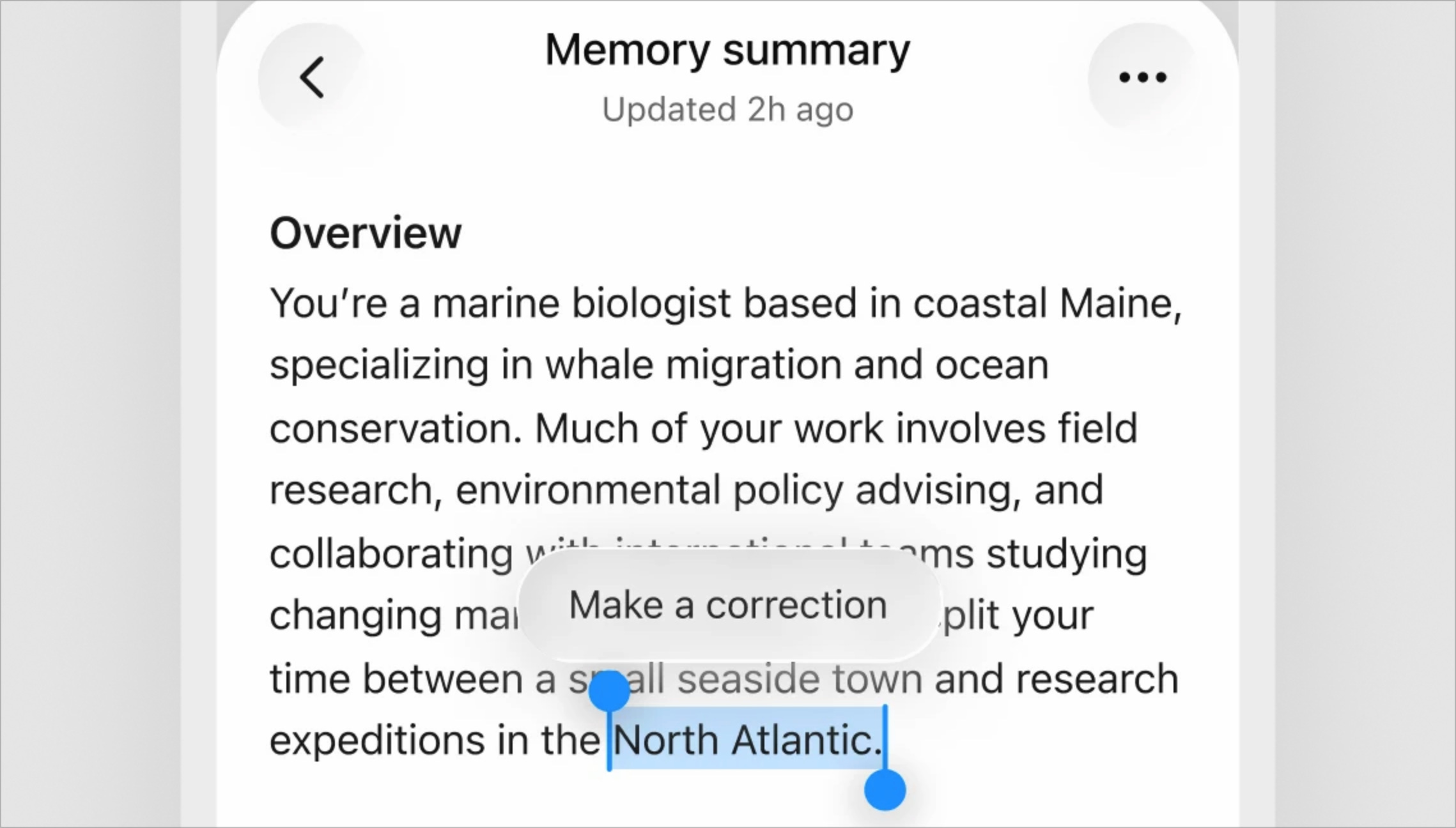
3. “I want to see what ChatGPT remembers.” Go to Settings → Personalization → Memory. The options here vary by account.
Memories and chats are separate, and deleting one doesn’t necessarily delete the other. A saved memory can outlive the chat it came from, and deleting a memory leaves any mentions in old chats. To remove something completely, check your memories, the original chats, and any saved files or connected apps that contain it.
4. “I don’t want this conversation saved.” Open a new chat, select Temporary, and choose Unpersonalized before your first message. That version stays out of your history, creates no memories, isn’t used to improve models, and doesn’t use your memory or custom instructions.
OpenAI may still keep a copy for up to 30 days for safety. If you save the chat, it becomes a regular one and follows your usual settings.
5. “I shared this chat and want to stop.” Locking won’t do it, because existing links keep working. Go to Settings → Data controls → Shared links → Manage and delete the link. This won’t remove copies that people already saved to their own history.
6. “I’m about to tell a GPT something sensitive.” GPT builders can’t view your individual conversations. A GPT that uses apps or external APIs, though, can send relevant parts of what you type to a third-party service, and that service handles it under its own rules. Check what’s connected first, and stick to services you trust.
Try it on something boring
You don’t need to change every setting. Pick the question that matters to you, then test the answer on a chat about lunch: lock it, and see whether it leaves your sidebar and search.